
Setup
- Download Mach3 CNC Control Setup.zip for desktop
- Install "Mach3 CNC Control" app from Play Store for Android
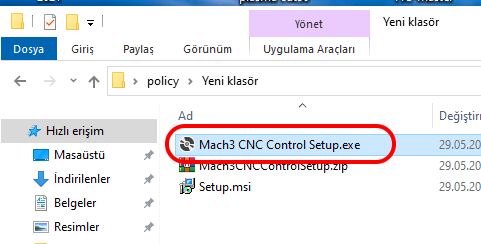
Extract the Mach3 CNC Control Setup.zip file from the archive and run Mach3 CNC Control Setup.exe to complete the installation.
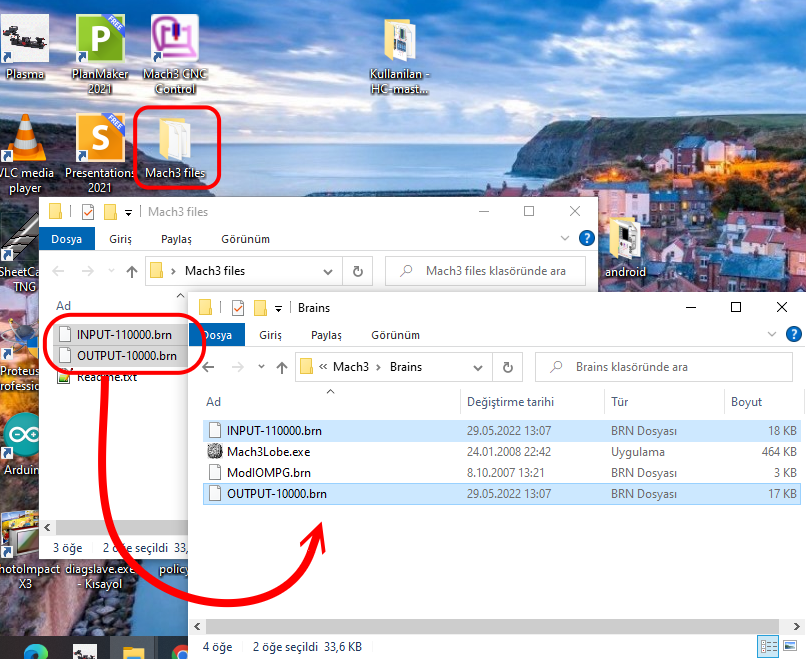
The INPUT-110000.brn and OUTPUT-10000.brn files in the Mach3 files folder created on the desktop Copy it to the C:\Mach3\Brains directory, then you can delete the folder on the desktop.
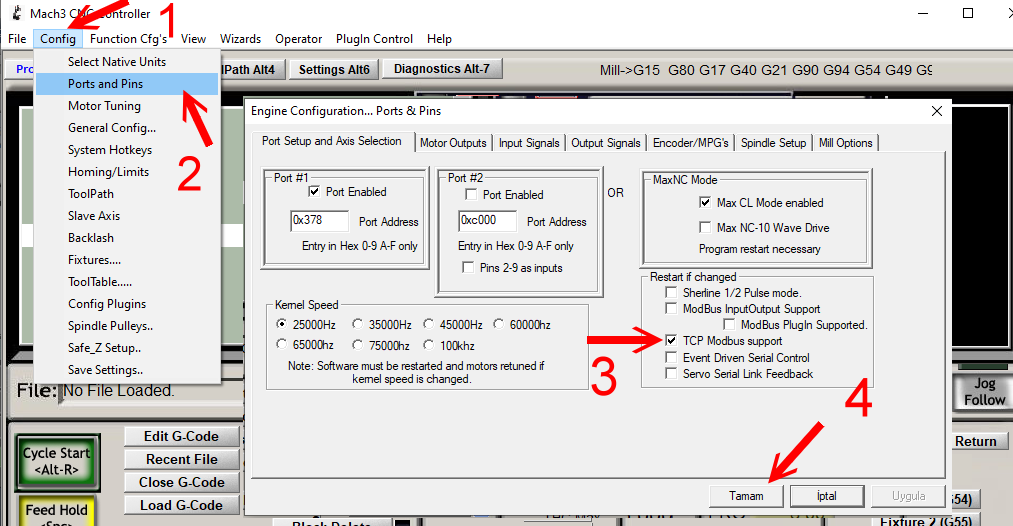
Start the Mach3 program and select Ports and Pins from the Config menu and activate the TCP Modbus support option as in the picture below.
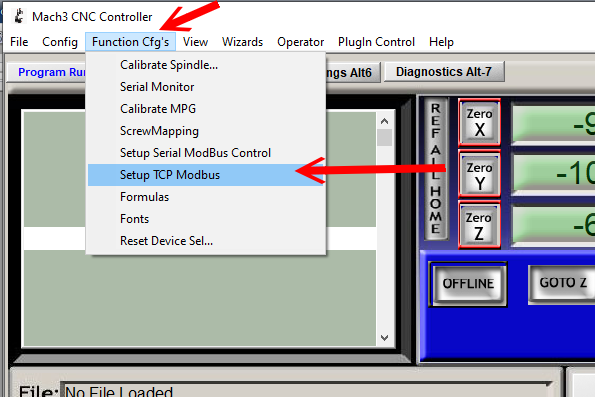
After activating this feature, select Setup TCP Modbus from the Function Cfg's menu.
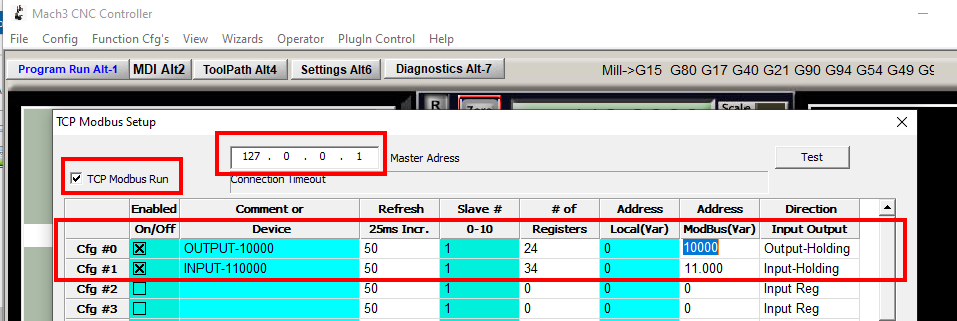
Configure the settings in the TCP Modbus Setup window as shown in the picture.
Type 127.0.0.1 as the IP Address, you can also type the local IP address like 192.168.1.15
Select TCP Modbus Run
Cfg #0 X OUTPUT-10000 50 1 24 0 10000 Output-Holding
Cfg #1 X INPUT-110000 50 1 34 0 11000 Input-Holding
Exit by clicking Apply and OK.
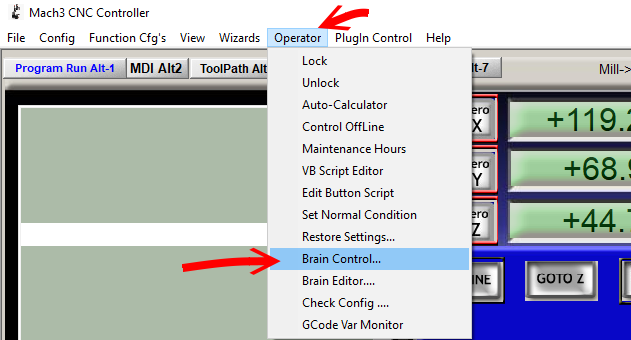
In the Mach3 program, select Brain Control from the Operator menu.
If the INPUT-110000.brn and OUTPUT-10000.brn files that you previously added to the Brains directory are not visible, press the Reload All Brains button.
Select one at a time INPUT-110000.brn and OUTPUT-10000.brn to activate Enabled , do this do it separately for both files and finally close it by pressing OK
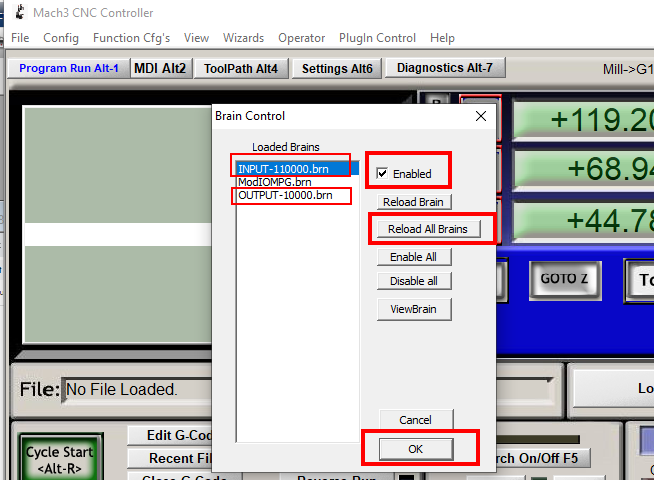
After these processes, you need to close the Mach3 program and start it again for the settings to take effect.
Running
Each time, run the Mach3 CNC Control program on the Desktop and then the Mach3 Program.
You can start it with Windows from the options in the program and minimize it to the system tray.
Status
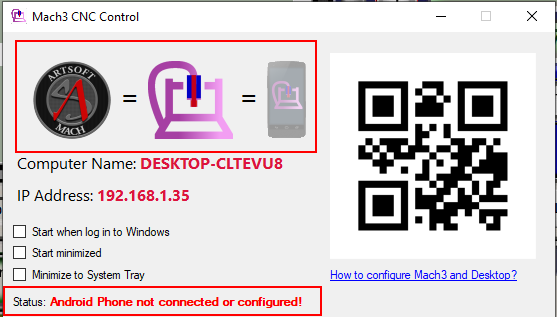
Icons have a live connection with the device and are configured correctly.
Icons are not connected to low contrast device or not configured correctly.
The Status section gives information about the connections.
Matching
Launch the Mach3 CNC Control app from your Android device, write the IP address in the IP Address section in the Settings tab (you can do it in an easier way by scanning the QR code) and save it from the save button.
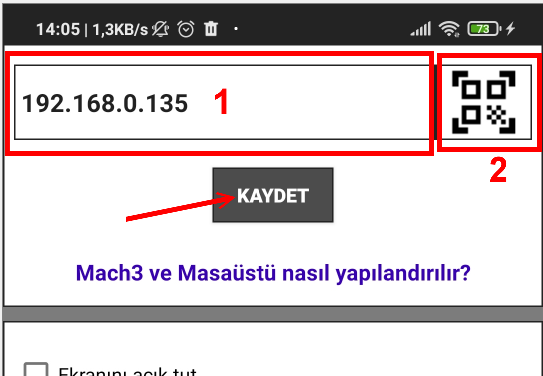
Note: When the computer restarts, it can get a different IP address, and you can define a fixed local IP to the computer in order not to experience any problems in the future and not to re-register the IP Address.
Feel happy while using it.